A single entity in your domain model can represent more than one Polarion work item type.
This is useful when you want to manage related types, such as software and hardware design requirements, within the same Powersheet view.
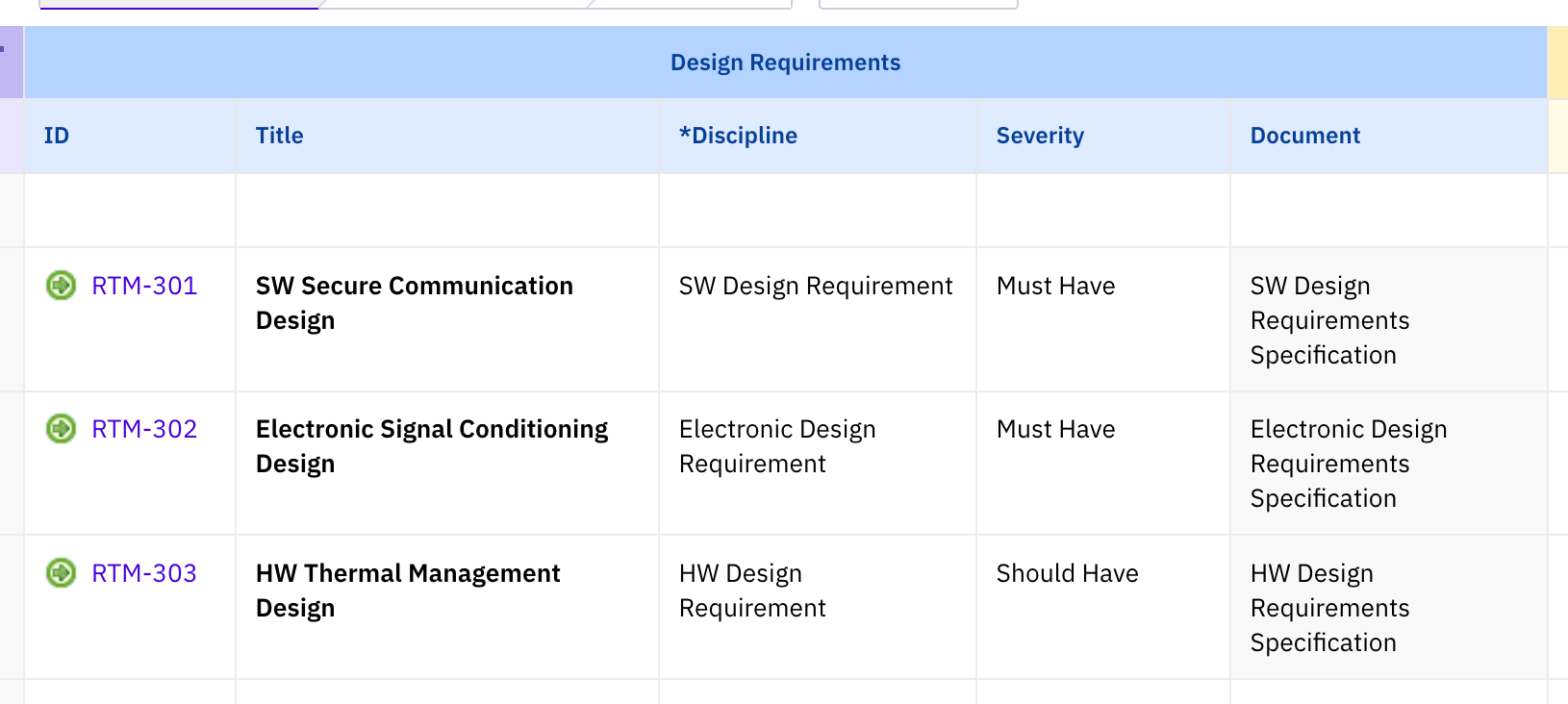
How to Configure
Specify the desired Polarion Work Item types.
To map an entity to multiple Polarion types, define polarionType as an array:
domainModelTypes:
  DesignRequirement:
    polarionType: [sw_des_req, hw_des_req, elec_des_req]
    properties:
      - description
Add a type column:
To create items from defined types, it is necessary to have a type column:
systemRequirements.systemRequirement.designRequirements.designRequirement.type:
    title: Discipline
    width: 150
    columnGroup: designRequirements
What Happens Automatically
When you use an array for polarionType Powersheet takes care of several things for you.
- Powersheet generates a load constraint so that only work items matching the configured types are loaded.
- Powersheet generates a create constraint that ensures new items can only be created in documents that allow the selected type.
- These auto-generated constraints are combined with any constraints you define yourself using AND logic.
- A Type selector is added
Powersheet automatically adds a type property to the entity, so you don't need to add it manually to the entity properties.
This property:
- Presents an enum with the types you listed in the array.
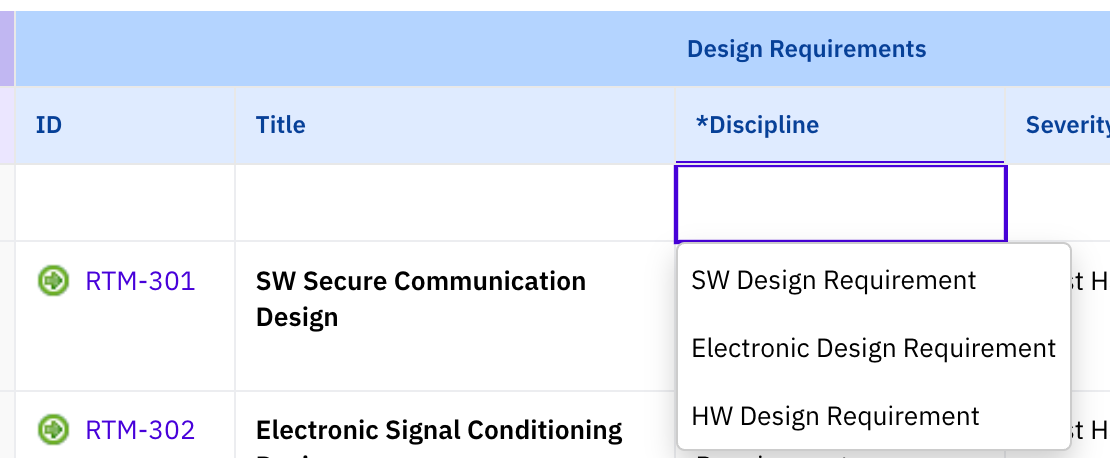
- Defaults to the first value in the array, so order matters.
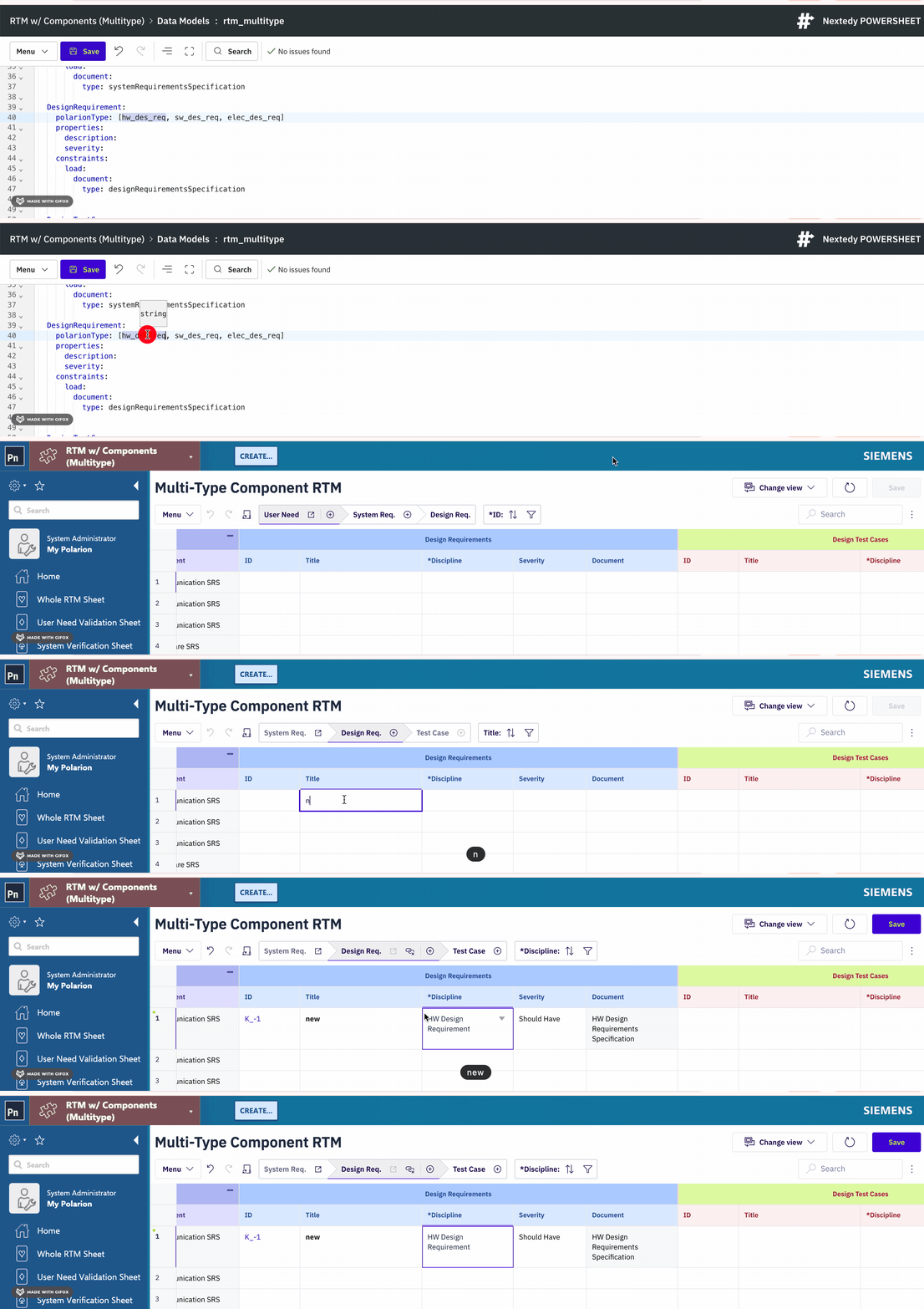
(In this example, you can see that the first defined work item type is hw_des_req. That's why when you create a new item, the system pre-fills the type property with the HW Design Requirement value. In case the new item shall be of a different type, it is needed to change it in the enum picker.)
- Is read-only after creation — users choose the type when creating a new item, but cannot change it afterward.
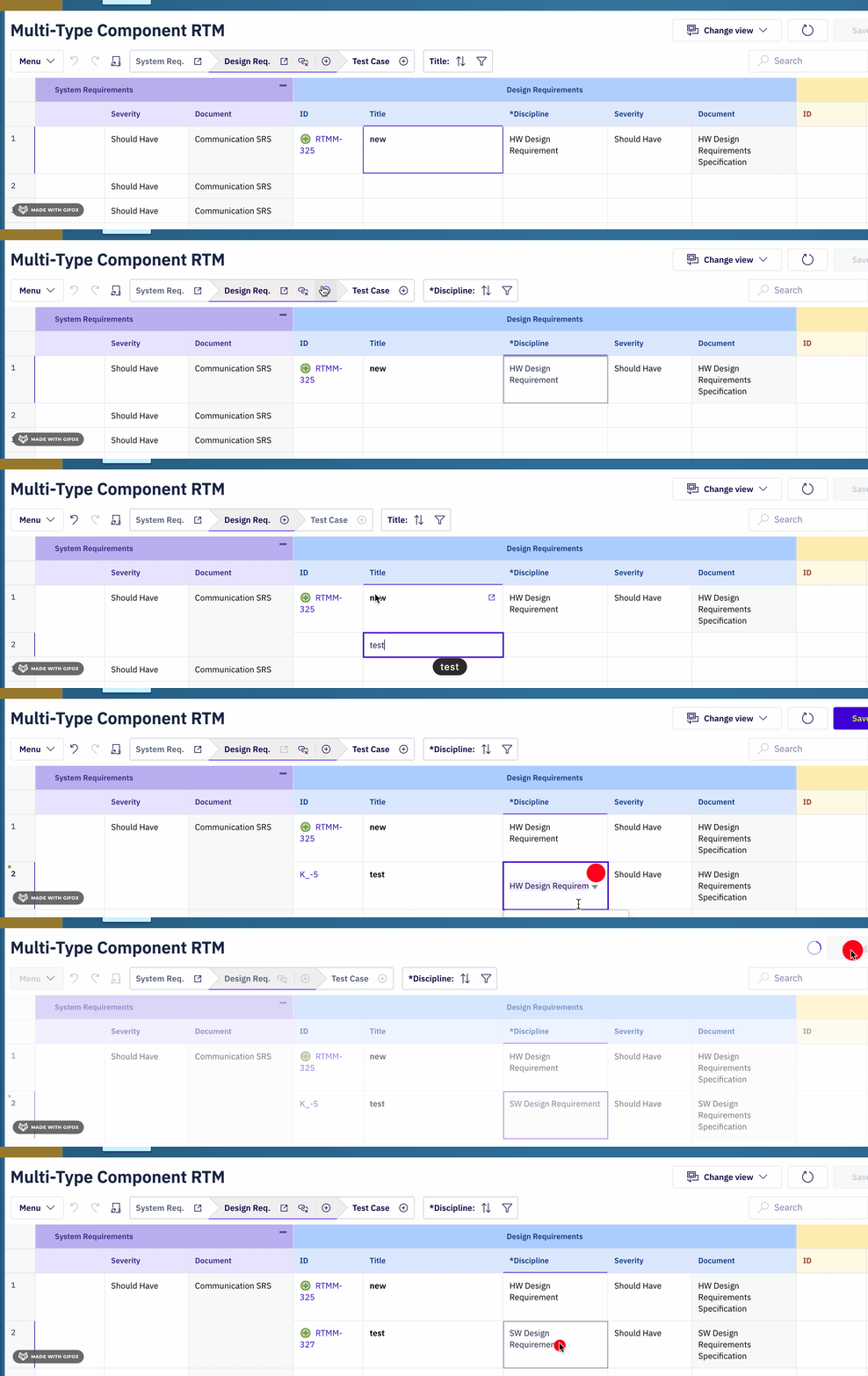
(In this example, you can see that for an existing item, the Discipline column is read-only, while for the new one, you can choose what type to select. Once the new item is saved, you can no longer change its type.)
Defining additional constraints
If you need more control, you can define your own constraints.
For example, type constraint in the load stage.
When you do so, this explicit constraint takes precedence.
So if you want to load only sw_des_req items even though the entity maps to both types, you can do so:
domainModelTypes:
  DesignRequirement:
    polarionType: [sw_des_req, hw_des_req]
    constraints:
      load:
        type: sw_des_req  # 'Overrides' auto-generated constraint to load all specified types, and only loads sw_des_req
More about constraints, you can find in a dedicated article: Constraints in Powersheet
With this setup:
- DesignRequirement rows display a type selector offering
sw_des_req, elec_des_req,andhw_des_req. - Pickers and load queries are automatically filtered to the allowed types.
- You can combine this with dynamic
$contextconstraints for type-aware data routing across relationships.
Was this article helpful?
That’s Great!
Thank you for your feedback
Sorry! We couldn't be helpful
Thank you for your feedback
Feedback sent
We appreciate your effort and will try to fix the article