Team Grouping of Resources is a feature that enables accurate multi-team resource planning directly in the Gantt chart. It solves a fundamental limitation of the previous model: a user assigned to multiple teams was shown only once, making it hard to plan their time correctly across different team contexts.
With Team Grouping, each user appears as a separate resource entry for every team they belong to. This means their availability, capacity, and overload status are computed independently per team, giving project managers a complete view of who is working on what and where the real bottlenecks are.
Team Grouping is a new feature available from version 26.3.0
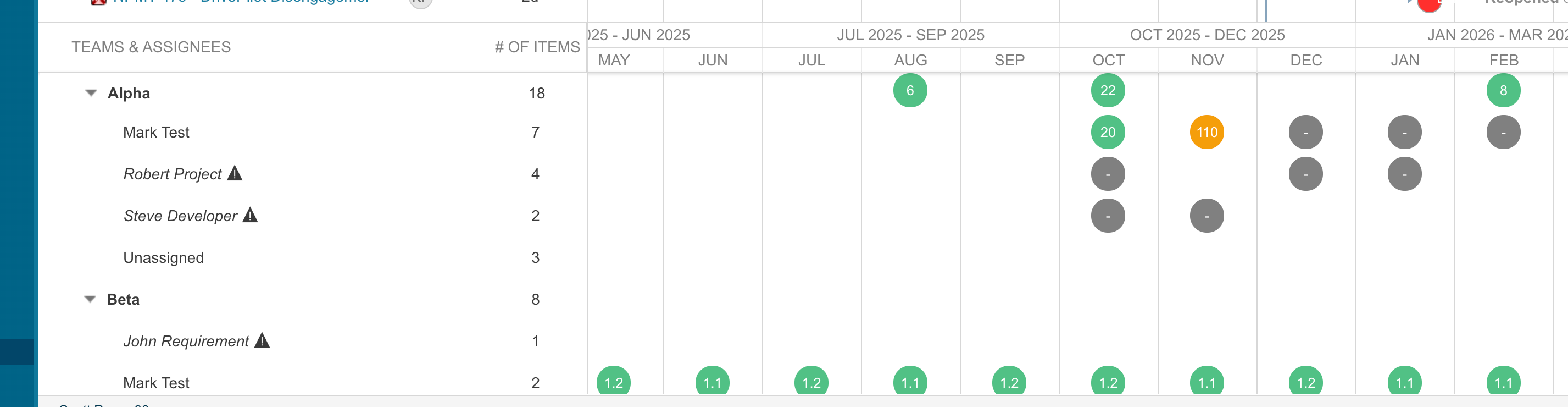
TABLE OF CONTENTS
- Why This Matters
- Key Concepts
- Enabling Team Grouping
- Cross-Project Teams
- Overload Color Schemes
- Grouped View (Default)
- Flat (Ungrouped) View
- Task Assignment with Team Grouping
- Legacy and Inconsistent Data
- Frequently Asked Questions
Why This Matters
Consider a developer who works 50% in a Software team and 50% in an Infrastructure team. Without Team Grouping:
- Their capacity is shown only once, under one team.
- The other team has no visibility of their availability.
- Any capacity calculation is incorrect.
- Overload signals are unreliable.
With Team Grouping enabled:
- The developer appears under both teams as an independent resource line.
- Each team sees its allocated share of the developer's capacity.
- Overload is evaluated per team: yellow if the user is over-allocated in that team, red if truly out of global capacity.
- Assignment and saving correctly records both the user and the team for each task.
Key Concepts
Concept | What it means |
Composite Resource | A unique combination of a user and a team. If a user belongs to 3 teams, they appear as 3 separate resource rows in the Gantt. |
Team-specific Capacity | Each composite resource has its own capacity derived from the team's calendar and the user's allocation within that team. Capacity is never shared or merged across teams. |
Grouped Resource View | Teams are displayed as collapsible group headers. Each user appears under every team they belong to. This is the default view when Team Grouping is enabled. |
Flat Resource View | An alternative view showing all composite resources as a flat list, without team grouping headers. Useful when comparing resources across teams. |
Yellow Overload | Indicates that a user is over-allocated within a specific team context, but still has remaining global capacity. Work can potentially be rebalanced to another team. |
Red Overload | Indicates that the user's total work exceeds their global capacity. Reducing workload is required, not just rebalancing between teams. |
Team Grouping is configured at the project level using Gantt configuration properties. No changes to team definitions or project structure are required.Enabling Team Grouping
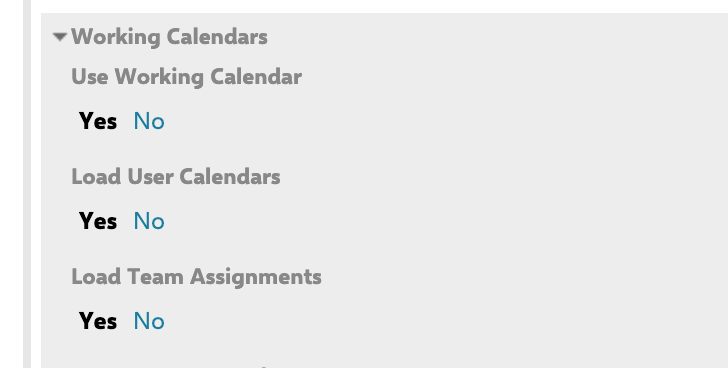
To enable Team Grouping, nothing special needs to be done.
There shall be just a Gantt chart with "Load Team Assignment" set to YES. This is the same configuration that was used for Team's aware Gantts without Team Grouping before.
Cross-Project Teams
Teams can be sourced from a separate Polarion project rather than the current one. This is useful when a single team structure is shared across multiple projects.
Property | Values | Description |
nextedy.gantt.teamManagementProjectId | Polarion Project ID | If set, teams are loaded from this project instead of the current one. |
nextedy.gantt.supportingProjectsFieldId | ID of a Team WI custom field that holds comma-separated projects | Additional projects from which team definitions can be sourced (e.g. for shared cross-project infrastructure teams). |
Overload Color Schemes
The visual overload indicator colors can be customized using named color schemes. This allows different visual treatments for in-team overload versus global overload.
See more: Team overallocation color schemes
Property | Description |
nextedy.gantt.config.resourceMarkersColorConfig | Defines named color schemes sharing the same percentage thresholds. Supports backward-compatible extension without breaking existing configs. |
nextedy.gantt.config.resourceMarkersColorConfig = {
  percentages: [80, 100, 120, 150],
  colors: ['blue', 'green', 'orange', 'red', 'red'],
  schemes: {
    globalOverload: ['blue', 'green', 'orange', 'red', 'red'],
    inTeamOverload: ['blue', 'green', 'purple', 'black', 'gray']
  }
}
Using the Resource
The built-in default scheme uses yellow for in-team overload and red for global overload. Custom schemes can be added without removing or changing existing threshold definitions.Grouped View (Default)
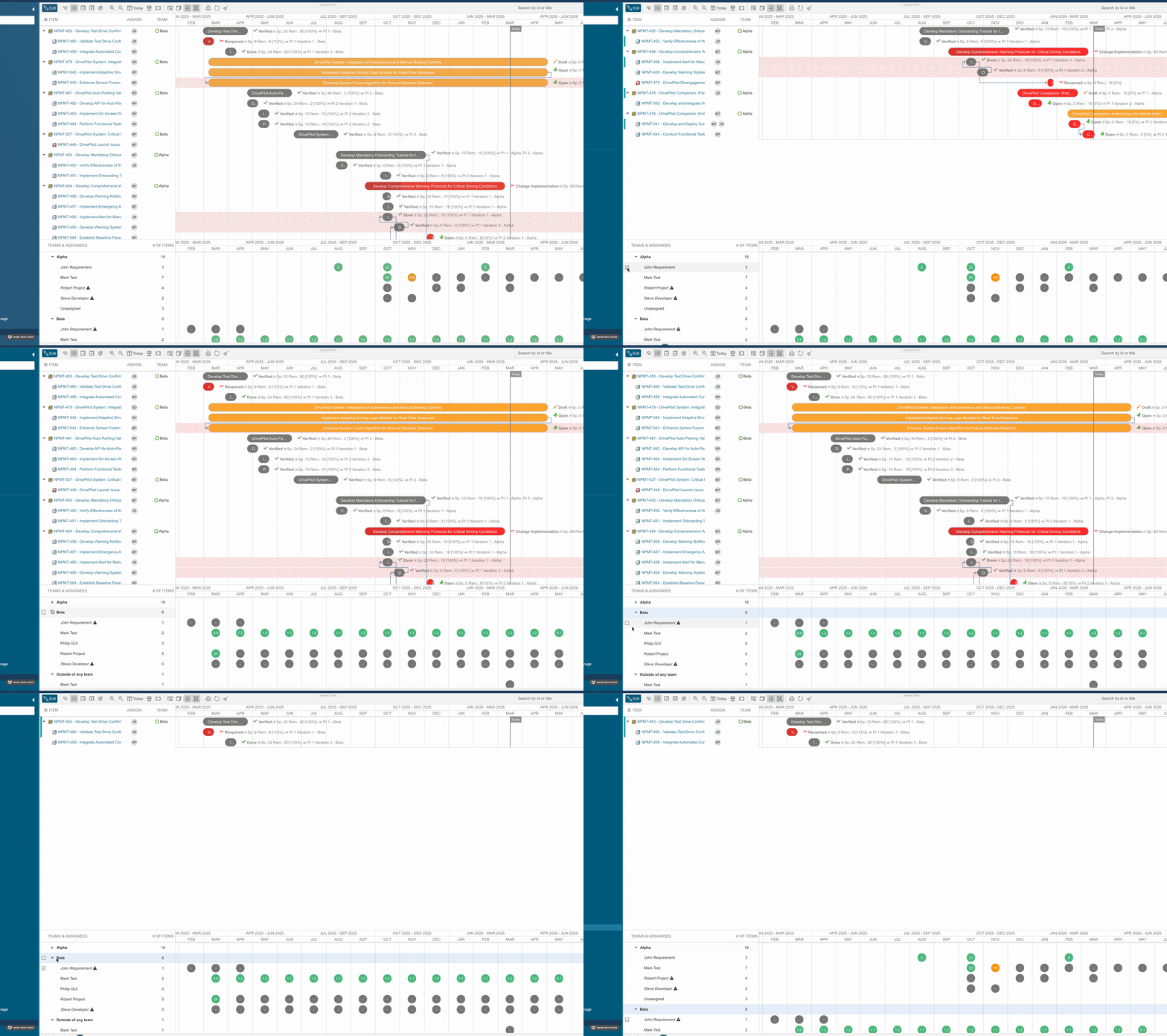
When Team Grouping is enabled, the Resource View defaults to a grouped layout:
- Teams appear as expandable/collapsible group headers.
- Each user is listed under every team they belong to.
- A user in three teams appears three times — once per team — each with its own capacity bar.
- Resources can be sorted, and the groups can be collapsed independently.
Flat (Ungrouped) View
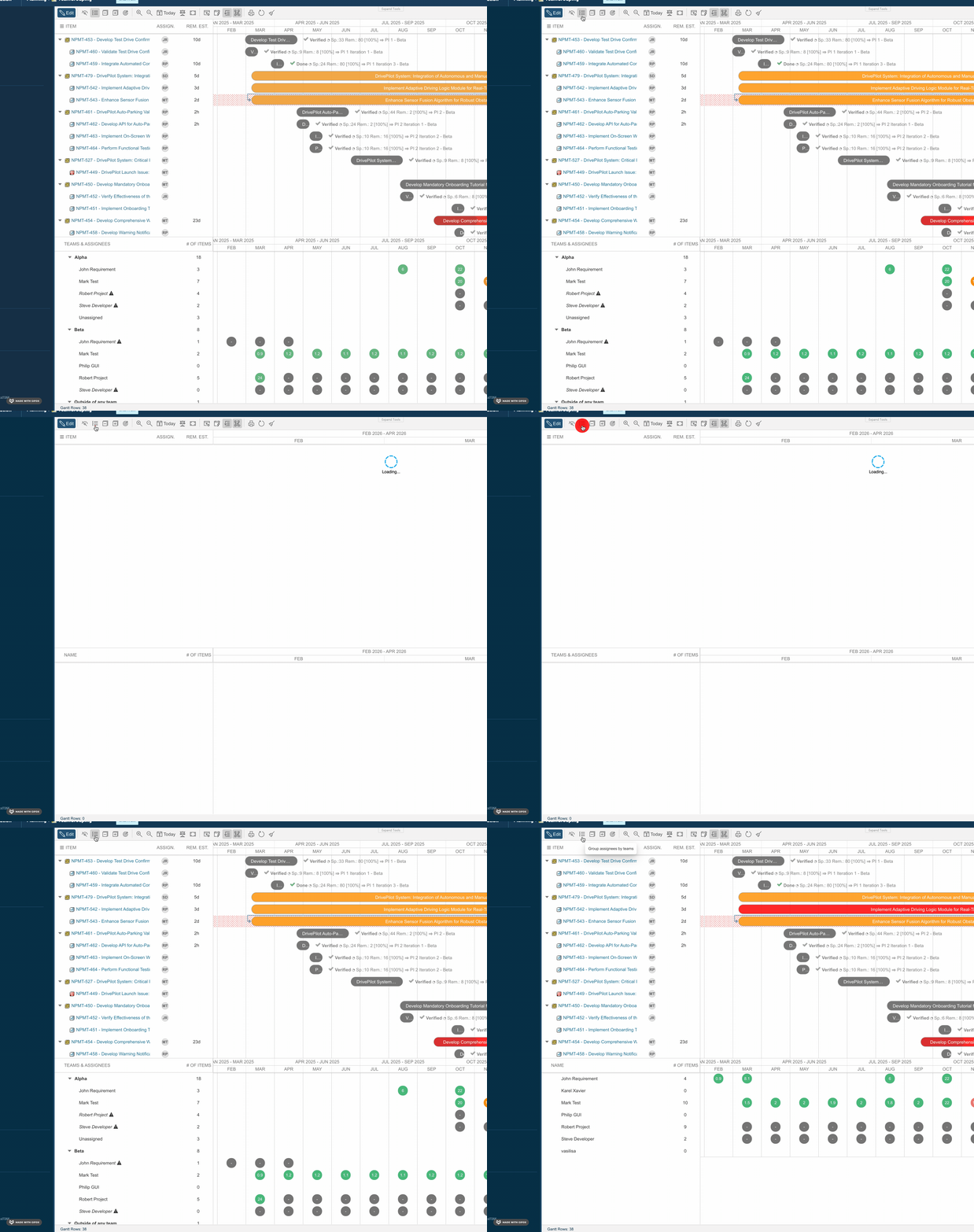
You can switch to a flat view using the view toggle in the Gantt toolbar. In flat view:
- All composite resources are shown in a single list, without group headers.
- Each entry still represents a specific user-in-team combination.
- Useful for comparing workloads across teams side by side.
- Switching between views does not require a page reload and preserves scroll position.
Task Assignment with Team Grouping
When Team Grouping is enabled, task assignment via the Lightbox (the task editing dialog) is team-aware. Both the user and the team are managed together to ensure assignments are always valid.
- Task assignment that stores Team value: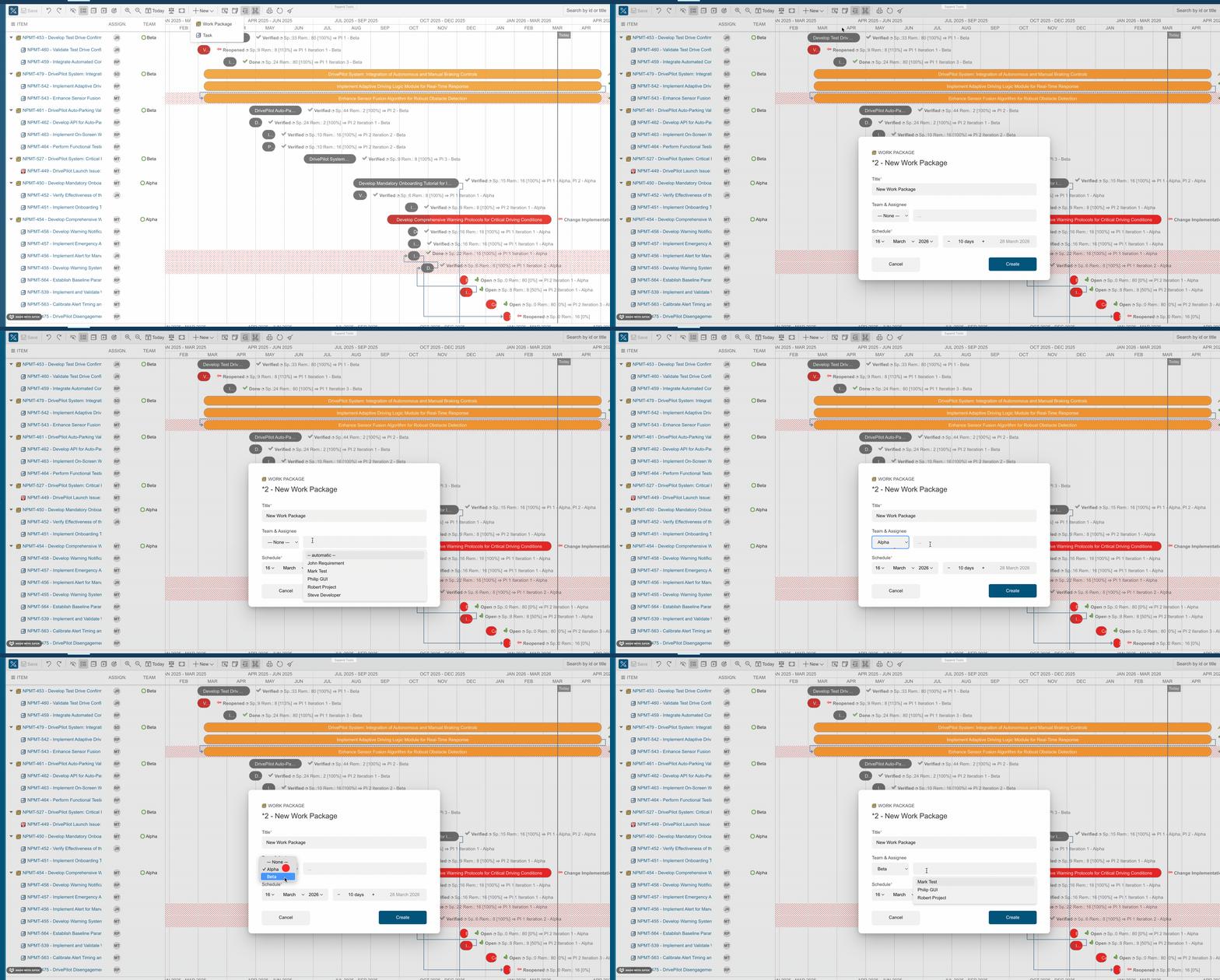
How It Works
- Click the "+ New" button in the Gantt to open the Lightbox.
- A new Team& Assignee dropdown field appears at the assignment section.
- The Team dropdown allows you to select to which team this task shall be assigned.
- The Assignee dropdown shows only users who belong to the selected team.
- Changing the Team refreshes the user list to show only the related ones.
- Select the user from the filtered list.
- Save the task. Both the user field and the team field are written to the work item simultaneously.
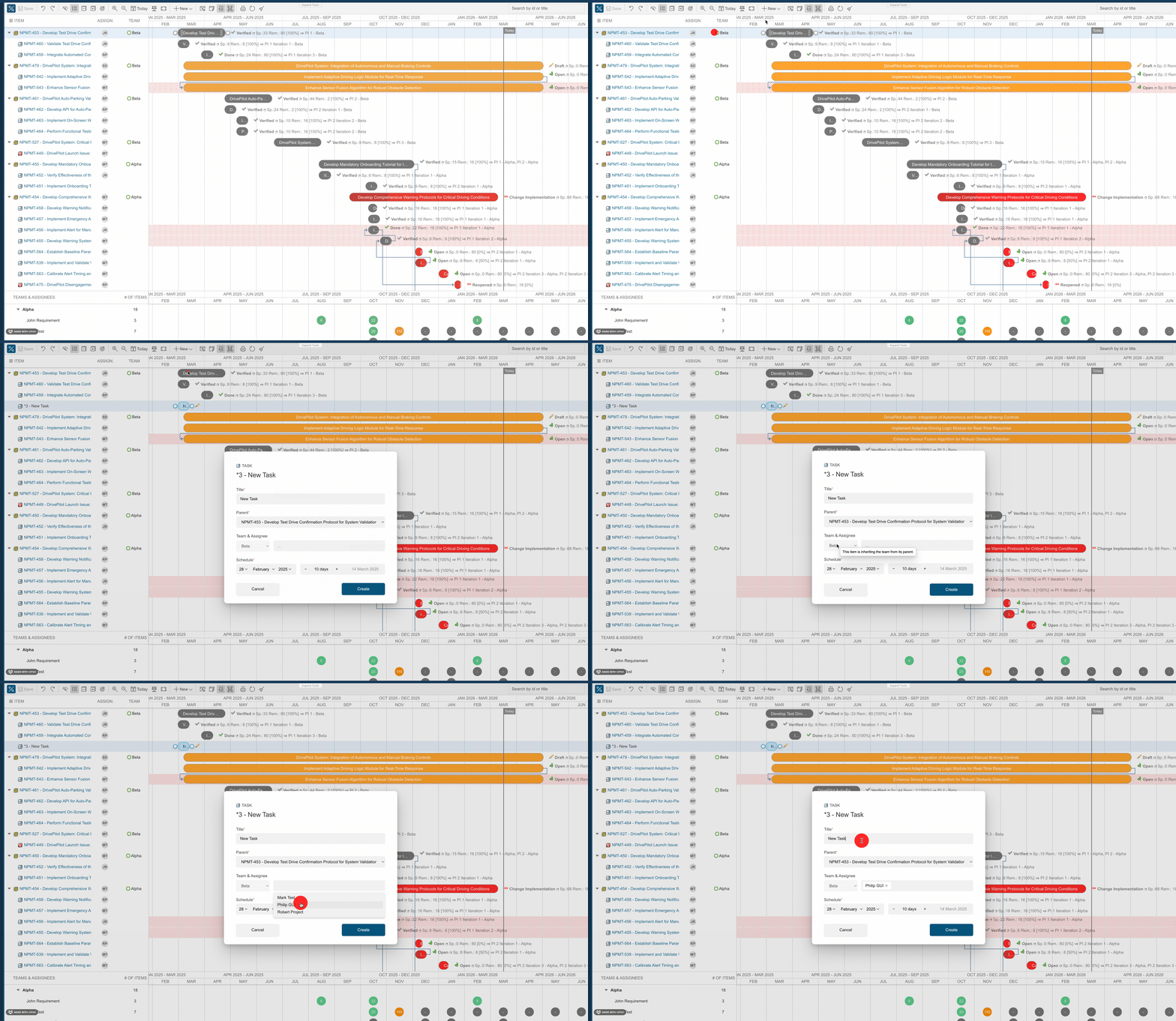
- Child Task assignment: Team comes inherited from the parent:
How It Works
- Click the "+ New" button in the Gantt to open the Lightbox.
- A new Team& Assignee dropdown field appears at the assignment section, pre-selected with the team that corresponds to the selected parent.
- The Assignee dropdown shows only users who belong to the selected team.
- Changing the parent to the one that corresponds to another Team refreshes the user list.
- Select the appropriate user from the filtered list.
- Save the task. Both the user field and the team field are written to the work item simultaneously.
Invalid cross-team assignments are prevented. You cannot save a task assigned to a user who does not belong to the selected team. This ensures data consistency and prevents incorrect capacity calculations.Legacy and Inconsistent Data
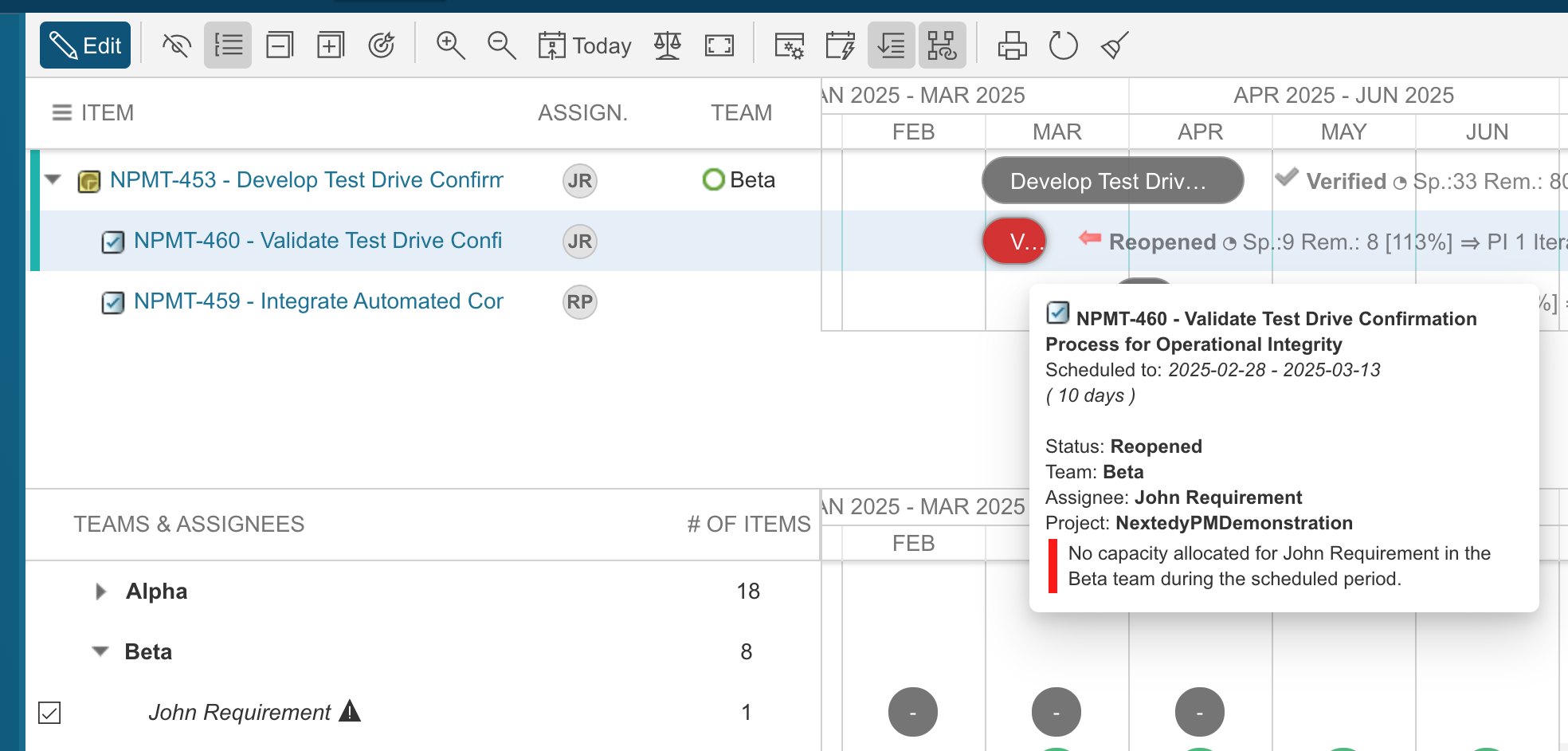
Tasks that were assigned before Team Grouping was enabled, or that have invalid team data, are handled gracefully:
- Such tasks are displayed in red; the task's tooltip highlights the reason.
- The user in the Resource view is shown in an italic font with an exclamation mark icon.
- Opening the Edit lightbox allows you to explicitly select a valid team and user combination, which normalizes the data on save. The invalid user is marked as external.

Backward Compatibility
Team Grouping has been designed to be fully backward compatible. Existing Gantt configurations and data are not affected unless Team Grouping is explicitly enabled.
Frequently Asked Questions
Will enabling Team Grouping affect my existing Gantt pages?
Only if you have Gantts that load Team Assignments. Existing pages without this setting remain completely unchanged.
Can a user appear under more than two teams?
Yes. There is no upper limit. A user assigned to five teams will appear as five independent resource rows - one per team, each with its own capacity and overload state.
What does yellow overload mean exactly?
Yellow means the user has more work assigned to a specific team than their allocation in that team allows, but they still have free capacity elsewhere (globally). It signals a team-level planning imbalance, not a true resource shortage.
Can I filter the Resource View to a single team?
Yes. You can do it by adding a Page Parameter. This works with or without Team Grouping enabled and shows only the resources belonging to the specified team.
Our teams are defined in a separate Polarion project. Is that supported?
Yes. Set nextedy.gantt.teamManagementProjectId to the project ID that contains your team definitions. The Gantt will load teams from there instead of the current project.
Does this change how task capacity is calculated for the Gantt summary row?
Capacity is always computed per composite resource (user + team). Summary-level aggregations reflect the sum of individual team capacities and loads. There is no double-counting across teams.
For setup assistance, configuration questions, or to report unexpected behavior, please contact Nextedy support via the product portal at support.nextedy.com
Was this article helpful?
That’s Great!
Thank you for your feedback
Sorry! We couldn't be helpful
Thank you for your feedback
Feedback sent
We appreciate your effort and will try to fix the article