Managing task dependencies is essential for building reliable project timelines, and Gantt charts provide a clear visual way to represent these relationships. This guide explains how to create and configure dependency links between work items in a Gantt chart using a graphical link builder, as well as how to properly enable and control dependency behavior.

TABLE OF CONTENTS
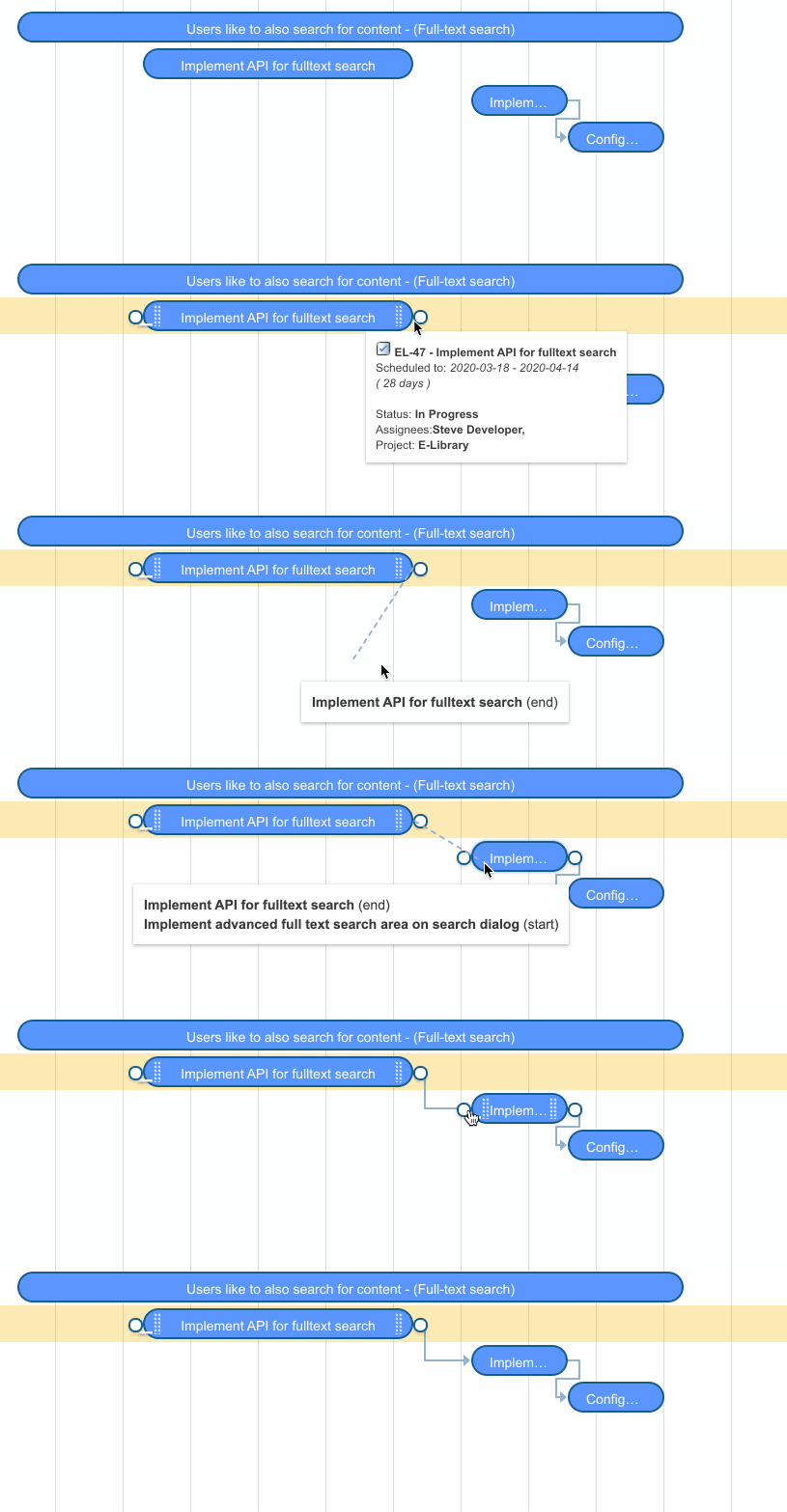
How to draw the dependency link
- Drag the start link circle
- Connect it with the end link circle
Configuration
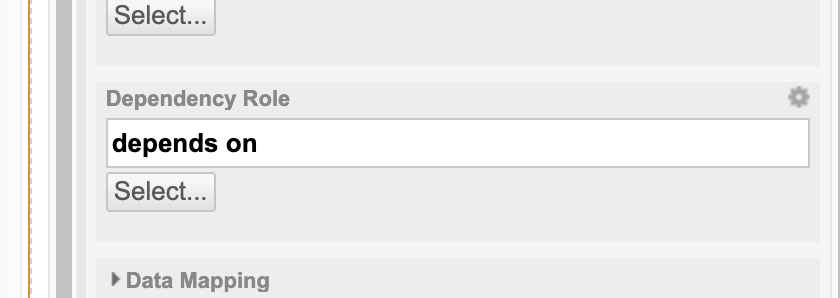
To enable this, you must configure the Gantt chart so that a Polarion link role is recognized as a "dependency."
- Go to Edit mode
- Open Widget Parameters
- Work Items > Dependency Roles (if multiple are selected, the first one is used by the visual builder)
Link directions
Standard Gantt charts display dependency arrows from the source task to the dependent task. In contrast, Polarion’s default link role “depends_on” defines the relationship in the opposite direction, linking the dependent item back to its source.
To align with standard Gantt behavior, Nextedy Gantt automatically reverses the arrow direction so dependencies are visualized correctly.
If you configure Polarion to use a different link role where the source already points to the dependent item, you can enable forward dependency handling with the following configuration property:If you setup Polarion with a different link role, so the source point to a dependent item, you can use a config property.
nextedy.gantt.workitems.default.forward_dependency=true
Check more about Gantt dependencies here.
For any assistance, please don’t hesitate to reach out by submitting a ticket here.
Was this article helpful?
That’s Great!
Thank you for your feedback
Sorry! We couldn't be helpful
Thank you for your feedback
Feedback sent
We appreciate your effort and will try to fix the article